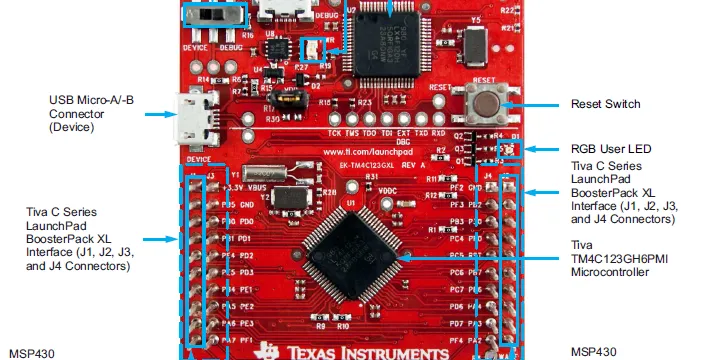
You plug in your TM4C123 LaunchPad. Nothing. Device Manager shows an unknown device, a yellow warning triangle, or nothing at all. Code Composer Studio cannot see it. The board gets power but USB enumeration fails completely.
This happens out of nowhere — no dropped board, no wiring mistake, no obvious cause. Here is exactly how to fix it.
What Is Actually Wrong
The TM4C123 LaunchPad has two microcontrollers on it:
- The TM4C123GH6PM — the target chip you program
- The ICDI (In-Circuit Debug Interface) — a second chip that handles USB communication between your PC and the target
The ICDI chip runs its own firmware. When that firmware gets corrupted — which can happen silently after a bad flash, a power glitch, or even a CCS crash — the board loses USB connectivity entirely. The target chip is fine. The debug bridge is not.
What You Need
- TM4C123 LaunchPad
- Micro USB cable (try a different one first, just to rule it out)
- LM Flash Programmer — free download from Texas Instruments
Download LM Flash Programmer from the TI website: ti.com/tool/LMFLASHPROGRAMMER
The Fix — Update the ICDI Firmware
Step 1 — Enter Boot Mode
Unplug the board. Hold down the left push button (SW2) on the LaunchPad, then plug in the USB cable while still holding the button. Hold it for about 3 seconds after plugging in, then release.
This forces the ICDI chip into its ROM bootloader mode. Windows should now recognize the board differently — you may see a new COM port appear in Device Manager, or a generic USB device.
Step 2 — Open LM Flash Programmer
Launch LM Flash Programmer. Go to the Firmware Update tab (not the main programming tab).
Step 3 — Update ICDI Firmware
Click Update Firmware. LM Flash Programmer will automatically detect the board in bootloader mode and flash the latest ICDI firmware onto it.
The process takes about 10–15 seconds. Do not unplug the board during this step.
Step 4 — Reconnect Normally
Once the update completes, unplug the board and plug it back in normally — no button held this time. Windows should now recognize it correctly and install the drivers. Code Composer Studio should detect it immediately after.
If the Board Still Does Not Appear
A few things to check before giving up:
- Try a different USB cable. Charging-only cables have no data lines — this catches a surprising number of people off guard.
- Try a different USB port. Avoid USB hubs; plug directly into the motherboard.
- Check Device Manager with the board plugged in. If you see anything — even an unknown device — the board is at least enumerating partially, which means ICDI firmware recovery should work.
- Reinstall the Stellaris ICDI drivers if the board appears but CCS cannot connect. The drivers ship with Code Composer Studio but can be installed manually from the CCS installation directory.
Why This Is Not Well Documented
TI’s official documentation covers programming the target chip thoroughly but says very little about ICDI firmware corruption. Most forum threads suggest reinstalling CCS or replacing the board, neither of which addresses the root cause.
The ICDI firmware update through LM Flash Programmer is the correct fix and takes under two minutes once you know about it.
Summary
| Problem | TM4C123 not recognized by USB |
|---|---|
| Root cause | Corrupted ICDI firmware |
| Tool needed | LM Flash Programmer (free) |
| Fix | Update ICDI firmware via bootloader mode |
| Time to fix | Under 5 minutes |
If this saved your board, the same approach applies to other TI LaunchPads that use ICDI — the MSP432 and some older Stellaris boards use the same debug interface.